- How to Customize Your WordPress Favicon in 7 Simple Steps
- Why Your WordPress Favicon Matters
- Need a Complete Brand Identity, Not Just an Icon?
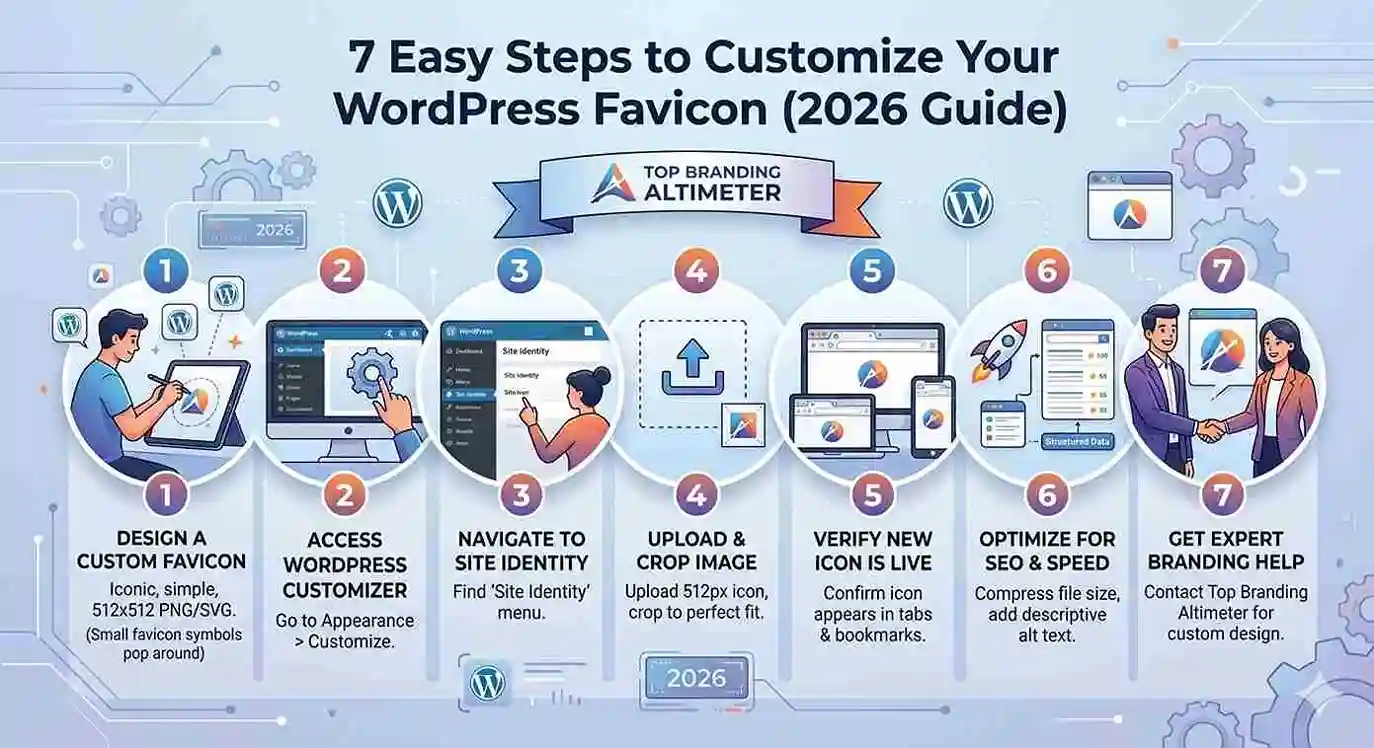
- Step 1: Design a Custom WordPress Favicon
- Step 2: Access the WordPress Customizer
- Step 3: Upload and Crop the Image
- Step 4: Clear Cache for Immediate Results
- Step 5: Add a Favicon Manually via Code (Optional)
- Step 6: Optimize Your Favicon for SEO
- Step 7: Verify Your Favicon is Live
- Bonus Tips: Integrate Your Icon into a Complete Brand Identity
- Is Your Website Overdue for a Refresh?
- Expert Insights That Matter
- Boost Your Site's Trust & Search Health
- Explore More Useful Marketing Resources
- Final Thoughts
How to Customize Your WordPress Favicon in 7 Simple Steps
A WordPress Favicon might seem like a small detail, but it holds massive power in shaping your brand’s digital identity. That tiny icon that appears in browser tabs, bookmarks, and on mobile devices not only enhances user experience but also boosts brand visibility and credibility.
In this comprehensive guide, we’ll walk you through 7 practical steps to customize your WordPress favicon to strengthen your branding. Whether you’re launching a new website or refining an existing one, these steps will help ensure your website leaves a professional impression.
Why Your WordPress Favicon Matters
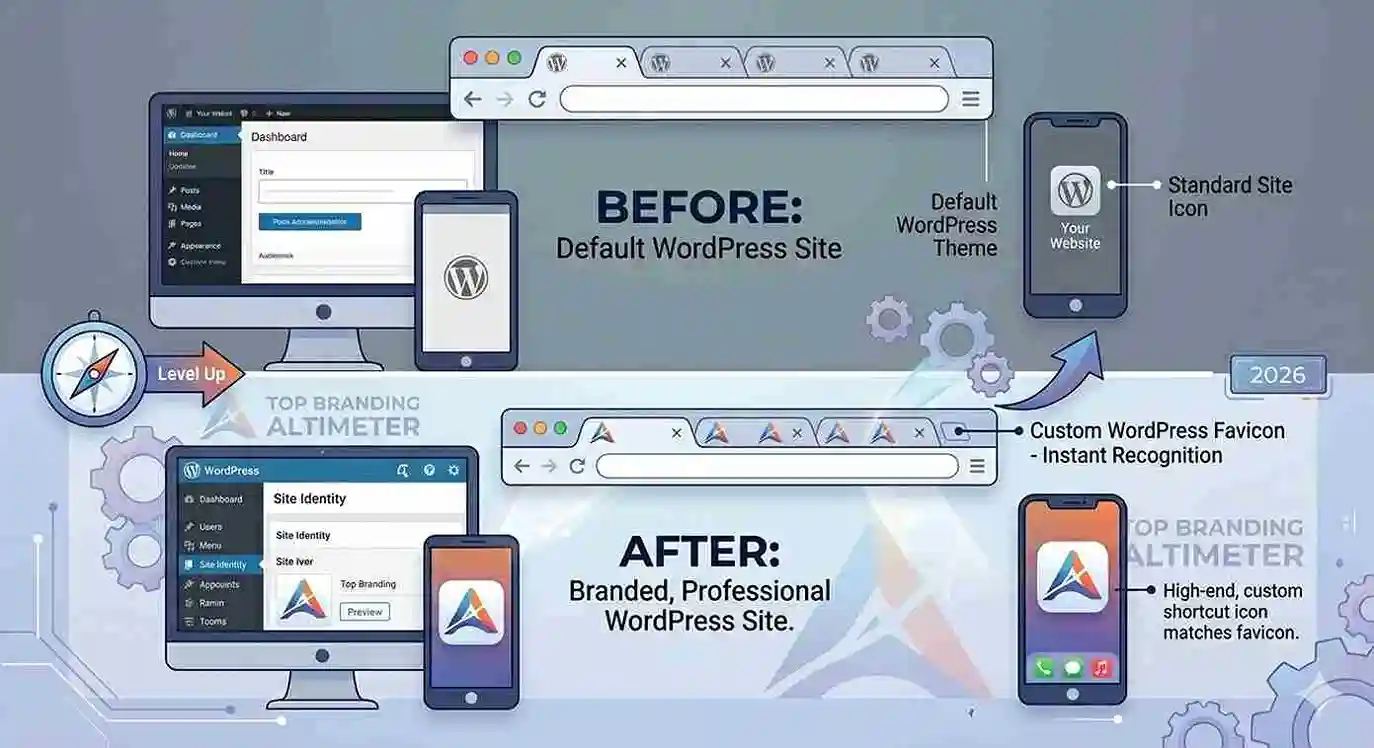
Your WordPress favicon is more than just a decorative element—it’s a key branding tool. It helps:
-
Establish strong, memorable brand recognition
-
Make your site stand out instantly in crowded open browser tabs
-
Improve user trust, safety, and overall authority
-
Strengthen consistent branding across all digital platforms
Think of it as your brand’s signature in a crowded digital world. When a user sees your custom icon, it instantly connects back to your overall brand identity design.
Need a Complete Brand Identity, Not Just an Icon?
Get a custom logo & brand identity built to make you memorable
Step 1: Design a Custom WordPress Favicon
To begin, you’ll need a visually appealing and professionally designed favicon. Keep these modern specifications in mind:
-
Size: 512×512 pixels (standard for WordPress core compatibility)
-
Format: PNG, ICO, or SVG (SVG is highly recommended for modern display crispness)
-
Simplicity is key: Avoid clutter; your logo or symbol should be clearly visible even when scaled down to 16×16 pixels.
You can use free tools like Favicon.io or Canva to create one. However, avoiding common logo design mistakes is crucial for scalability. For a custom, high-end look, it is best to partner with an agency specializing in professional logo design to ensure your mark looks perfect at any resolution.
Step 2: Access the WordPress Customizer
Once your favicon asset is ready:
-
Log in to your WordPress Dashboard.
-
Navigate to Appearance > Customize.
-
Click on Site Identity.
Here, you’ll find the native option to upload your WordPress favicon, also technically referred to as the Site Icon. If you’re currently working on a broader project, like building a high-converting website, this is one of the easiest native features to use without breaking code.
Step 3: Upload and Crop the Image
Within the Site Identity section:
-
Click Select Site Icon.
-
Upload your optimized 512x512px image file.
-
Use WordPress’s built-in cropping preview tool to adjust boundaries if needed.
Once published, your custom WordPress favicon will automatically appear in browser tabs and scale flawlessly as an app shortcut icon when users save your site to mobile home screens.
Step 4: Clear Cache for Immediate Results
After uploading your favicon, changes might not show immediately due to deep browser caching or server-side optimization plugins. To view your updated icon right away:
-
Clear your local browser’s cache entirely.
-
Test the URL using an incognito or private browsing window.
-
Hard refresh your website (
Ctrl + F5orCmd + Shift + R) or view it from another device.
If you hit any technical snags during this stage and end up facing a critical error on this website, check your theme settings or asset permissions.
Step 5: Add a Favicon Manually via Code (Optional)
Advanced users or developers working through a full custom web development layout might prefer to manually insert the favicon code directly into the site’s header. Here’s how:
-
Upload your icon assets directly to your theme or site’s root directory via SFTP or File Manager.
-
Add the following line of code inside your theme’s
header.phpfile, specifically inside the<head>tags:
HTML
<link rel="icon" href="https://yourdomain.com/favicon.ico" type="image/x-icon">
This traditional approach offers granular control over multiple asset calls, which is common practice when executing advanced web design vs web development protocols.
Step 6: Optimize Your Favicon for SEO
While favicons don’t directly influence rankings, they contribute heavily to user trust, CTR (Click-Through Rate) in search snippets, and professional appearance—which are critical pillars of Google EEAT SEO guidelines.
To make your favicon fully SEO-friendly:
-
File Naming: Use clear, descriptive file names like
top-branding-altimeter-favicon.png. -
Image Compression: Compress the file before uploading to maintain ultra-fast performance. Site speed is a core ranking factor, as detailed in our guide on website speed SEO.
-
Structured Alignment: Keep your favicon consistent with your global design to satisfy automated crawlers. (For more on how search engines scan assets, check out how Google special case crawlers manage site assets).
Implementing these minor adjustments is a valuable addition to your foundational on-page SEO checklist.
Step 7: Verify Your Favicon is Live
To confirm your new icon is displaying correctly:
-
Check it on multiple desktop platforms (Chrome, Safari, Edge, Firefox).
-
View your site in a bookmarked layout or pinned tab to verify scaling.
-
Run your URL through professional favicon checker tools for absolute validation.
If the icon doesn’t show up, double-check your asset file formats, dimensions, and clear any remaining server caches.
Bonus Tips: Integrate Your Icon into a Complete Brand Identity
A favicon shouldn’t exist in a vacuum. It is a single, critical element of a much larger puzzle. To build real authority online, your favicon should match perfectly with your main company logo, color theme, and marketing assets.
If your site currently feels mismatched or looks dated, it may be time for a strategic refresh. You can learn how to plan this transition seamlessly by reading our step-by-step website redesign guide, or save time by downloading our quick website redesign checklist to audit your visuals properly.
Is Your Website Overdue for a Refresh?
Get a modern, professional website redesign that builds trust
Expert Insights That Matter
Experience
We’ve worked hands-on with dozens of businesses, deploying tailored wordpress seo services and creating flawless, cross-device brand experiences.
Expertise
As specialized partners in branding and web design, we understand how tiny technical details directly impact user signals, conversion metrics, and visual authority.
Authoritativeness
Staying completely compliant with Google’s changing favicon display specifications ensures your business logo shows up correctly in the organic SERPs.
Trustworthiness
All actionable steps detailed here are fully updated for modern web compliance. If you want to check your site’s overall search health beyond just the favicon, consider getting a professional seo audit services analysis to map out your technical growth.
Boost Your Site’s Trust & Search Health
Get a free SEO audit to uncover your site’s growth opportunities
Explore More Useful Marketing Resources
-
Master organic growth strategies with our complete guide on seo for beginners.
-
Scale your digital presence effectively by working with our organic seo services team.
-
Discover how tailored branding and web design for small businesses can help transform your bottom line.
Final Thoughts
Customizing your WordPress favicon might seem like a small step, but it makes a massive impact on how users perceive your brand’s legitimacy. From instant tab recognition to polished search results, a professional favicon anchors your entire digital ecosystem.
Ready to completely transform your business’s online footprint? Contact Top Branding Altimeter today to speak with our experts, or explore our premier branding services to build a brand that stands out from the competition. Let’s build something remarkable together!
Ready to Grow Your Business?
Get expert guidance tailored to your brand — completely free consultation
Get Free Consultation