
- How to Fix "Critical Error on This Website" in WordPress
- What Does This Error Mean?
- What Causes This Error in WordPress?
- Quick Fix — Beginner Friendly
- Step-by-Step Fix — Most Important Section
- Fix Using cPanel or FTP
- When Nothing Works — Advanced Fix
- How to Prevent This Error in the Future
- Need Help? — Get Expert WordPress Support
- Frequently Asked Questions
How to Fix “Critical Error on This Website” in WordPress
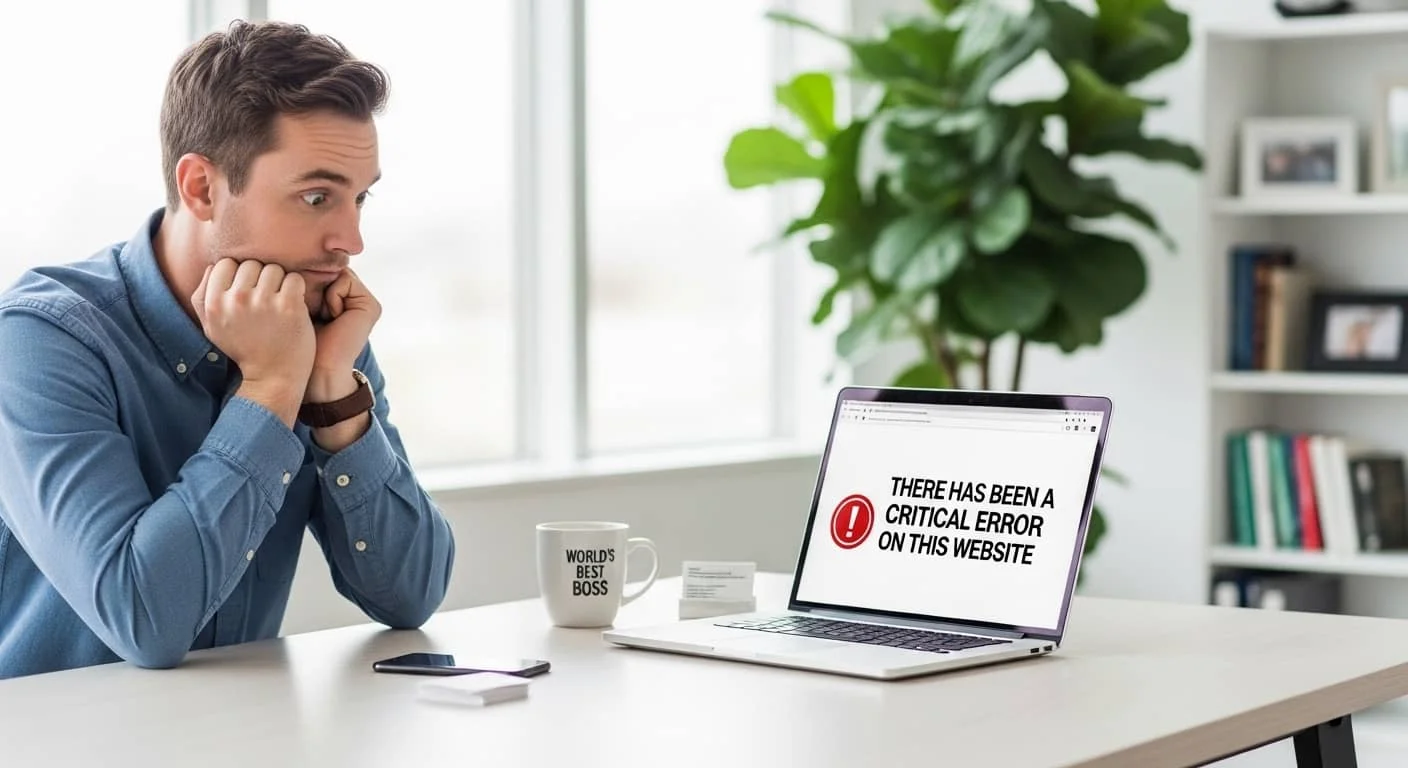
You open your WordPress website and see it — that dreaded white screen with the message: “There has been a critical error on this website.” Your heart sinks. Your site is down. Visitors can’t reach you. And you have no idea what just happened or how to fix it.
You’re not alone. This is one of the most common WordPress errors faced by small business owners, bloggers, freelancers, and beginners across the USA — including right here.
The good news? This error is fixable. In this step-by-step guide, we’ll walk you through exactly what causes the “there has been a critical error on this website WordPress fix” and how to resolve it — even if you’re not a developer.
Whether you’re a non-technical blogger, a DIY website user, or a small business owner trying to get your site back online fast, this guide is written specifically for you.
What Does This Error Mean?
When It Appears
The “there has been a critical error on this website” message typically appears when:
- You just updated a plugin or theme
- You installed a new plugin or switched themes
- Your hosting server made a PHP version change
- A file was accidentally edited or corrupted
- Your WordPress core files were partially updated
WordPress shows this message instead of a white blank screen (which used to be called the “WordPress White Screen of Death”) because newer versions (5.2+) now include a built-in fatal error protection mode. It’s WordPress trying to protect you — but it still means something is broken underneath.
Common Symptoms
Here’s what you might experience alongside this error:
- Your homepage loads a white screen with the critical error message
- Your WordPress admin dashboard (/wp-admin) is also inaccessible
- You receive an automated email from WordPress titled “Your Site Is Experiencing a Technical Issue.”
- Only certain pages are affected, while others load fine
- The error appears right after an update or new installation
If any of these sound familiar, keep reading — the solution is closer than you think.
What Causes This Error in WordPress?
Understanding the root cause is the first step to a permanent fix. The “there has been a critical error on this website WordPress fix” almost always comes from one of the following sources.
Plugin Conflicts
This is the #1 cause of critical errors in WordPress. When two or more plugins are incompatible with each other — or when a plugin is incompatible with your current PHP version or WordPress version — it throws a fatal PHP error that crashes your site.
This happens most often right after:
- Installing a new plugin
- Updating an existing plugin to a newer version
- Updating WordPress core while plugins haven’t been updated
Theme Issues
Your active WordPress theme contains PHP code. If that code has a bug, an outdated function, or a conflict with the current PHP version on your server, it will trigger a critical error. Custom themes built by less experienced developers are especially prone to this.
PHP Errors
PHP is the programming language that powers WordPress. A fatal PHP error — such as calling an undefined function, running out of memory, or using deprecated syntax — will bring your entire site down. Hosting providers sometimes upgrade their PHP version without warning, which can instantly break older themes or plugins not yet compatible with that version.
Memory Limit
WordPress has a PHP memory limit — typically set between 32MB and 128MB by default. If your site is running heavy plugins, WooCommerce, page builders, or large databases, it may exceed that limit and trigger a critical error. This is one of the most overlooked causes of the WordPress fatal error and one of the easiest to fix.
Quick Fix — Beginner Friendly
Before diving into technical steps, try these two simple things first. They solve the problem more often than you’d expect.
Refresh + Cache Clear
Sometimes the error is temporary — caused by a server hiccup or cached broken data.
- Hard refresh your browser: Press
Ctrl + Shift + R(Windows) orCmd + Shift + R(Mac) - Clear your browser cache completely
- If you use a caching plugin like WP Rocket or W3 Total Cache, clear the plugin cache from the WordPress dashboard (if you can still access it)
- Wait 2–3 minutes and reload your site
If the error persists, move to the next step.
Check Email From WordPress
When WordPress detects a critical error, it automatically sends an email to your admin email address. This email:
- Tells you which plugin or theme caused the error
- Provides a temporary recovery link to access a special admin mode
- Allows you to deactivate the problematic plugin directly from that link
Check your inbox (and spam folder) for an email from WordPress. This is your fastest route to identifying the exact cause without touching any files.
Step-by-Step Fix — Most Important Section
If the quick fix didn’t work, follow these steps in order. Each step targets a different possible cause of the WordPress critical error.
Step 1 — Enable Debug Mode

WordPress has a built-in debugging system that reveals exactly what’s causing the fatal error. To enable it, you’ll need to edit your wp-config.php file.
Here’s how:
- Access your website files via cPanel File Manager or an FTP client like FileZilla
- Navigate to your WordPress root folder (usually
public_html) - Find the file named
wp-config.php - Right-click and select Edit
- Find this line:
define( 'WP_DEBUG', false );- Replace it with:
define( 'WP_DEBUG', true );
define( 'WP_DEBUG_LOG', true );
define( 'WP_DEBUG_DISPLAY', false );- Save the file and reload your website
Now WordPress will silently log all errors to a file called debug.log inside the /wp-content/ folder. Open that file to see the exact line and file causing the critical error.
⚠️ Important: Always disable debug mode after you fix the issue. Set
WP_DEBUGback tofalsebefore going live.
Step 2 — Disable Plugins Manually
Since plugin conflicts are the most common cause, disabling all plugins is the most effective diagnostic step.
If you can access wp-admin:
- Go to Plugins → Installed Plugins
- Select all plugins
- Choose Deactivate from the bulk actions dropdown
- Reload your site
If you cannot access wp-admin (most common scenario):
- Log in to your hosting account’s cPanel
- Open File Manager
- Navigate to
public_html/wp-content/ - Find the folder named
plugins - Rename it to something like
plugins_disabled - Reload your website
WordPress will now load without any plugins. If your site comes back to life, a plugin was the cause.
To find the specific plugin:
- Rename the folder back to
plugins - Re-enter File Manager and go inside the plugins folder
- Rename individual plugin folders one at a time (e.g., rename
woocommercetowoocommerce_off) - Reload your site after each rename
- When the site breaks again, you’ve found the culprit
- Delete or update that plugin
Step 3 — Switch to a Default Theme
If disabling plugins didn’t fix the error, your active theme may be the problem.
Via File Manager or FTP:
- Navigate to
public_html/wp-content/themes/ - Find your currently active theme folder
- Rename it (e.g.,
mytheme_backup) - WordPress will automatically fall back to a default theme (like Twenty Twenty-Three or Twenty Twenty-Four)
- Reload your website
If your site works with the default theme, your custom theme has a fatal PHP error. Contact your theme developer or switch to a well-maintained premium theme.
Step 4 — Increase PHP Memory Limit
A low PHP memory limit is a silent killer for WordPress sites running multiple plugins or WooCommerce.
Method 1 — Via wp-config.php:
- Open
wp-config.phpin your File Manager or FTP client - Add this line before the line that says
/* That's all, stop editing! */:
define( 'WP_MEMORY_LIMIT', '256M' );- Save and reload
Method 2 — Via .htaccess (if wp-config doesn’t work):
- Find the
.htaccessfile in your root folder - Add this line:
php_value memory_limit 256M- Save and test
Method 3 — Via cPanel (PHP Settings):
- Log in to cPanel
- Find “PHP Version” or “MultiPHP INI Editor”
- Increase
memory_limitto 256M or 512M - Save changes
Step 5 — Check Error Logs
Your server keeps detailed error logs that can help you pinpoint the exact cause. These are especially useful when you’ve enabled WordPress debug mode.
Where to find error logs:
- WordPress debug log:
wp-content/debug.log(only if WP_DEBUG_LOG is enabled) - cPanel Error Logs: Login to cPanel → Metrics → Errors
- Hosting Control Panel: Many hosts, like SiteGround, Bluehost, and Hostinger, have built-in error log viewers
Look for lines containing Fatal error, Call to undefined function, or memory exhausted. These tell you exactly which file and which line of code is causing the WordPress critical error.
Fix Using cPanel or FTP
For users who prefer working inside their hosting account without a separate FTP client, here’s how to handle file-based fixes directly from cPanel.
Access File Manager
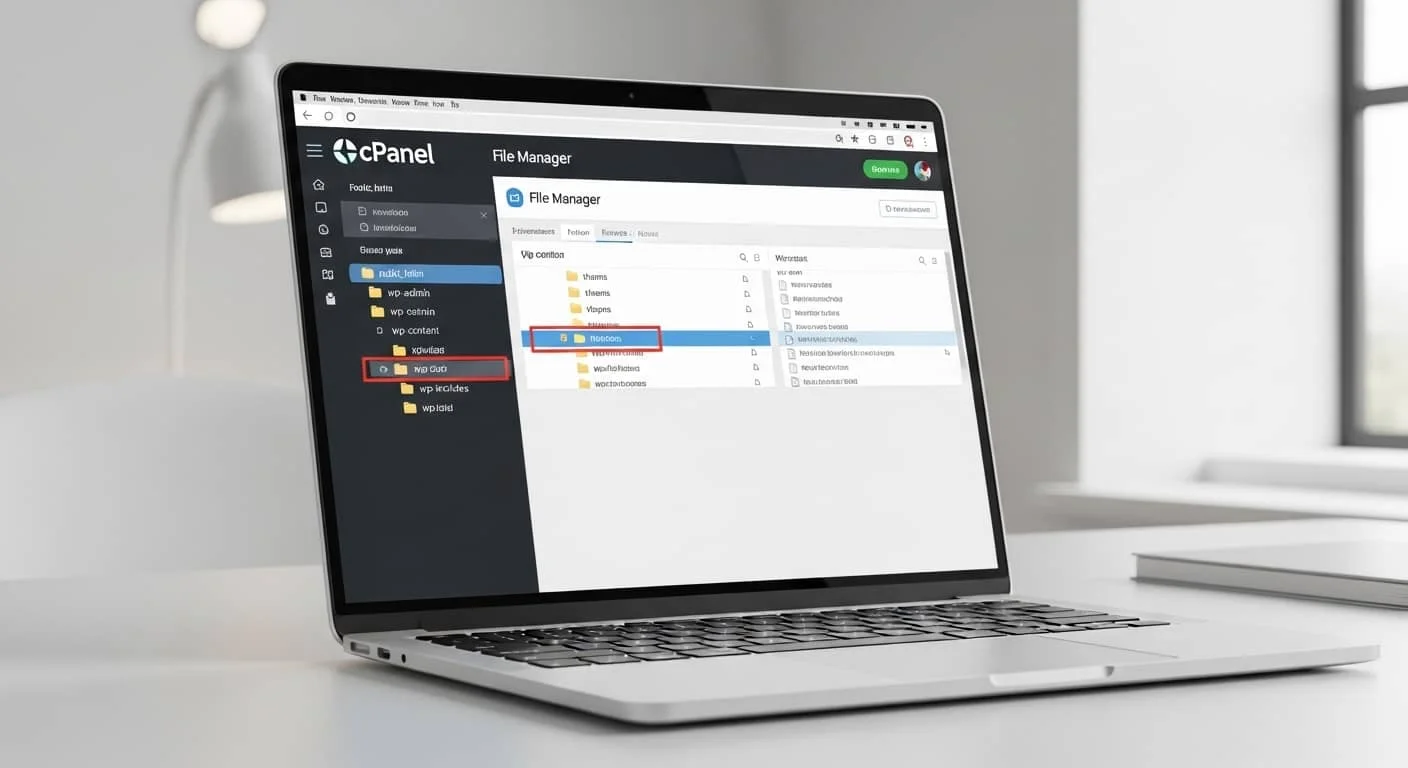
- Log in to your hosting account
- Open cPanel Dashboard
- Click on File Manager under the Files section
- Make sure “Show Hidden Files” is checked (important for seeing .htaccess)
- Navigate to
public_html— this is your WordPress root directory
From here, you can access and edit wp-config.php, the plugins folder, the themes folder, .htaccess, and error logs all in one place — no FTP client needed.
Edit wp-config.php
The wp-config.php file is the control center of your WordPress installation. From this single file, you can:
- Enable or disable WordPress debug mode
- Increase the PHP memory limit
- Change database connection settings
- Disable automatic updates (which can sometimes cause conflicts)
To edit safely:
- Right-click
wp-config.phpin File Manager - Click Download first to keep a backup copy
- Then click Edit
- Make your changes carefully
- Click Save Changes
Never delete wp-config.php. Always download a backup before editing.
When Nothing Works — Advanced Fix
If you’ve tried all of the above steps and the “there has been a critical error on this website” message is still showing, it’s time for the advanced solutions.
Reinstall WordPress Core Files
Sometimes core WordPress files become corrupted, especially during a failed update. Reinstalling the core doesn’t delete your content, posts, pages, or database — it only replaces the core files.
Here’s how:
- Download the latest version of WordPress from wordpress.org
- Extract the zip file on your computer
- Delete the
wp-contentfolder from the extracted files (do not upload this) - Also delete
wp-config-sample.php - Connect to your site via FTP
- Upload all remaining files to your
public_htmlfolder - Choose Overwrite when prompted
This replaces all core WordPress files with fresh versions while leaving your database, uploads, plugins, and themes untouched.
Restore a Backup
If reinstalling core files still doesn’t resolve the error, restoring a clean backup is your safest option.
Where to find your backup:
- cPanel Backups: Go to cPanel → Backup Wizard → Restore
- Your hosting provider’s backups: Most modern hosts (Kinsta, SiteGround, WP Engine) keep automated daily backups
- Backup plugins: If you were using UpdraftPlus, BlogVault, or Jetpack Backup before the error occurred, restore the most recent clean version
Restoring a backup takes your site back to a working state. After restoring, update the plugin or theme that caused the error — or remove it entirely.
How to Prevent This Error in the Future

Fixing the error is important. Preventing it from happening again is even more important. Here are the best practices every WordPress site owner should follow.
Update Plugins and Themes Regularly
Outdated plugins and themes are the single biggest security and stability risk for any WordPress site. Most critical errors happen because:
- A plugin hasn’t been updated in months
- The theme was built for an older PHP version
- WordPress core was updated, but plugins didn’t follow
Best practices:
- Check for updates at least once a week
- Before updating, test on a staging site if possible
- Read plugin changelogs before updating — especially major version updates
- Remove plugins you no longer use
Use Reliable Hosting
Not all hosting is created equal. Cheap shared hosting often uses outdated PHP versions, has very low memory limits, and doesn’t provide proper error logging or staging environments.
For a stable, error-free WordPress experience, consider hosting providers that offer:
- PHP 8.1 or higher support
- At least 256MB PHP memory limit
- Automated daily backups
- Staging environments
- WordPress-specific server optimization
Recommended options include Kinsta, WP Engine, SiteGround, and Cloudways for small businesses and growing websites in the USA.
Regular Backups
Backups are your insurance policy. If you have a clean backup from yesterday, a critical error today is a 10-minute fix — not a multi-hour crisis.
Backup recommendations:
- Use a plugin like UpdraftPlus (free) or BlogVault (paid)
- Schedule daily automated backups
- Store backups offsite — Google Drive, Dropbox, or Amazon S3
- Test your backups periodically to make sure they actually restore correctly
Need Help? — Get Expert WordPress Support
You’ve just read one of the most complete guides to fixing the “there has been a critical error on this website WordPress fix” available anywhere online. But sometimes, despite following every step, the error persists — and that’s completely okay.
Not every website owner should have to become a WordPress developer to keep their site running.
If you’re in USA or anywhere across the USA — and you need fast, professional WordPress support, the team at Top Branding Altimeter is here to help.
We are a full-service Website Designer and WordPress Website Development USA agency with deep expertise in:
- Emergency WordPress error fixes
- Plugin and theme conflict resolution
- PHP and server-level debugging
- WordPress maintenance and security
- Full website rebuilds and migrations
Whether you need a one-time fix or ongoing WordPress maintenance, our experts handle it all — so you can focus on running your business.
Contact Top Branding Altimeter Today — and get your WordPress site back online fast.
Frequently Asked Questions
How do I fix a critical error in WordPress?
Start by checking your admin email for a WordPress recovery link. Then disable all plugins via File Manager, switch to a default theme, and increase the PHP memory limit. If those steps don’t work, enable WP_DEBUG in wp-config.php to read the exact error log and identify the source.
What causes a critical error on WordPress?
The most common causes are plugin conflicts, outdated or incompatible themes, PHP fatal errors, exceeded PHP memory limits, and corrupted WordPress core files. A recent update — whether to a plugin, theme, or PHP version — is usually the trigger.
Can plugins cause a critical error?
Yes. Plugin conflicts are the number one cause of the WordPress critical error. This is especially common when a plugin is incompatible with your current PHP version, another plugin, or the latest WordPress core update.
How do I enable debug mode in WordPress?
Open your wp-config.php file via cPanel File Manager or FTP. Add define( 'WP_DEBUG', true ); and define( 'WP_DEBUG_LOG', true ); before the stop-editing line. This will create a debug.log file inside wp-content/ that records all PHP errors.
Is this error related to hosting?
It can be. If your hosting provider recently changed your PHP version, lowered your memory limit, or if the server is experiencing issues, it can cause a WordPress critical error. Check your cPanel error logs and contact your host if you suspect a server-side problem.
How to fix WordPress without login access?
When you can’t access wp-admin, use cPanel File Manager or an FTP client to disable plugins by renaming the plugins folder, switch themes by renaming your active theme folder, and edit wp-config.php to enable debug mode or increase memory. The WordPress recovery email also contains a direct link to a limited admin panel without needing to log in normally.
Top Branding Altimeter serves small businesses, bloggers, and entrepreneurs across the USA. Visit https://topbrandingaltimeter.com to explore our full range of web design, WordPress development, SEO, branding, and digital marketing services.